> ## Documentation Index
> Fetch the complete documentation index at: https://docs.astrobirb.dev/llms.txt
> Use this file to discover all available pages before exploring further.
# Setup
> This is a general overview of the setup progress.
## Step 1 - Permissions [(Full Documentation)](/permissions)
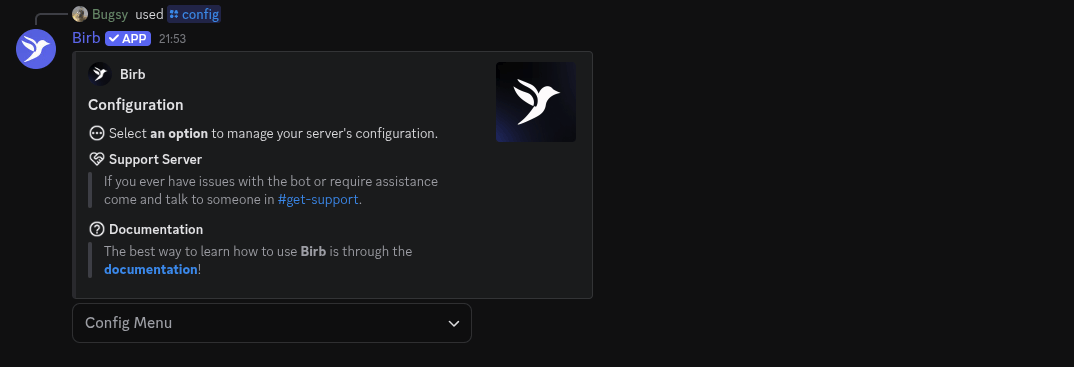
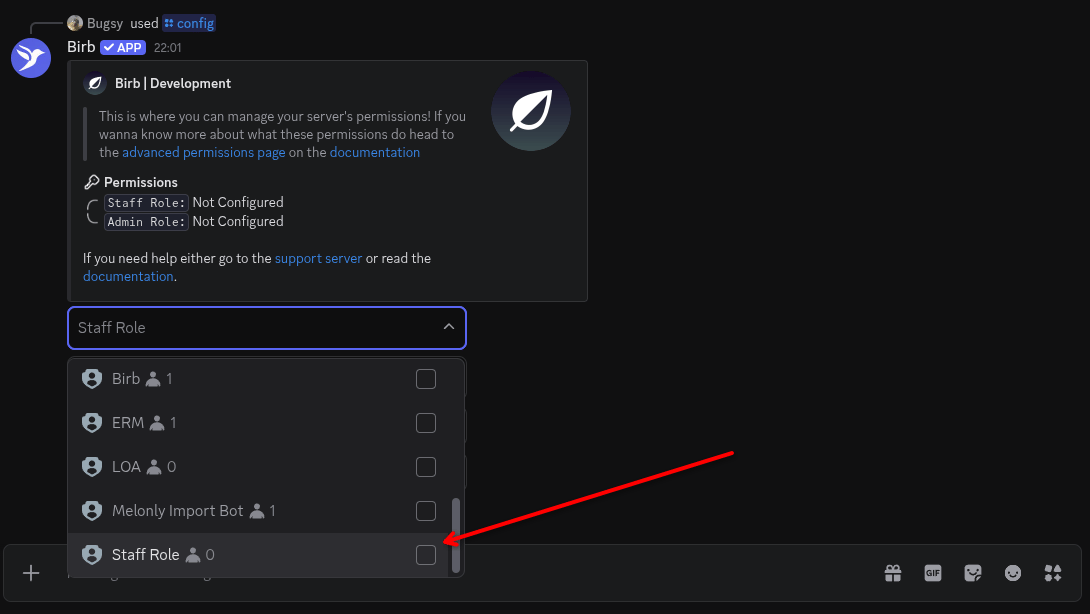 Click on the permissions select option within in the Config Menu.
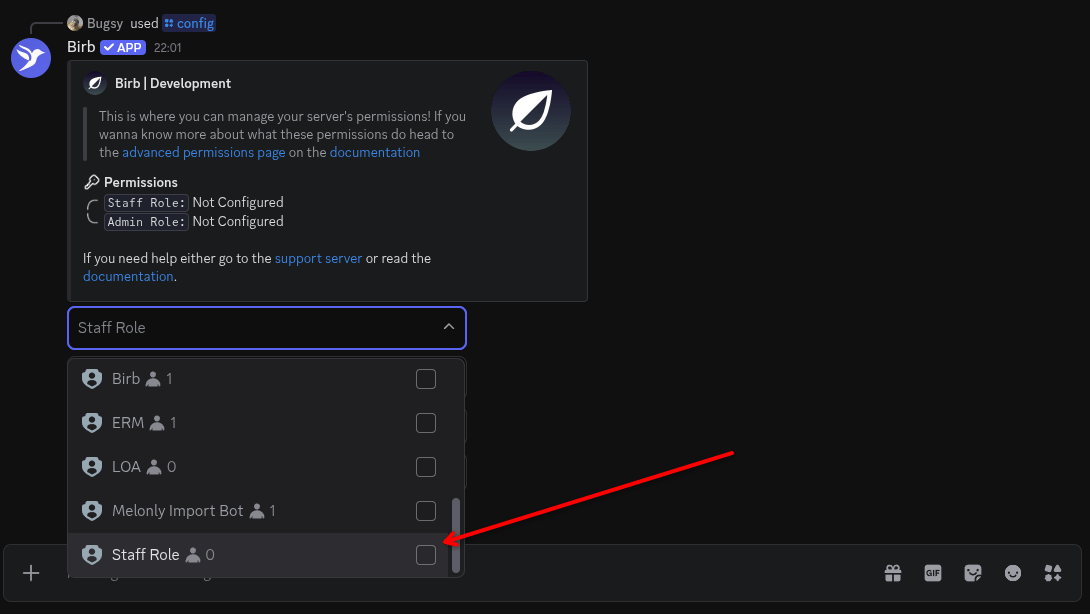 Select the staff role & admin role that fits the description. If you can't see the role on the dropdown list, remember you can search inside the dropdown box.
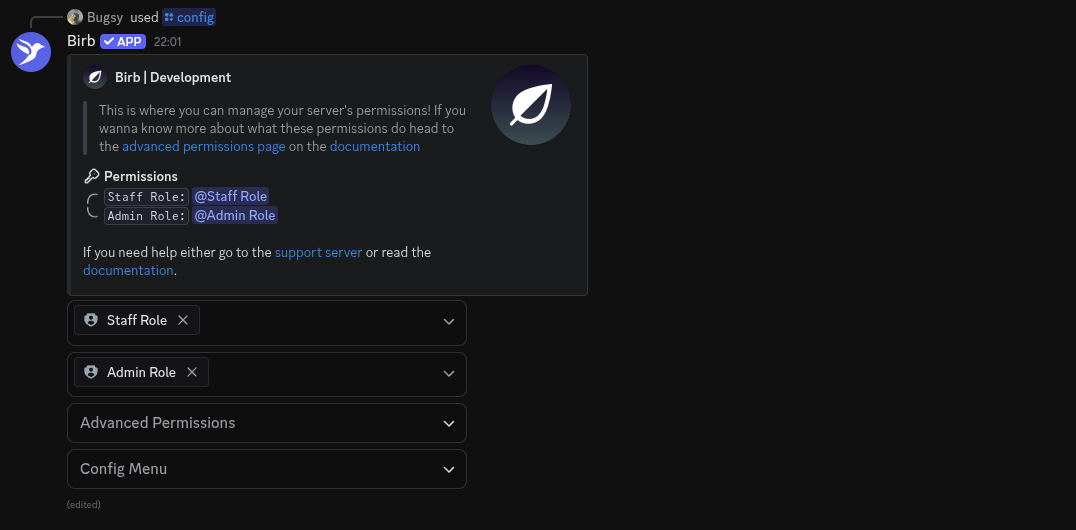 Your permissions menu should look like this!
## Step 2 - Modules ([Full Documentation)](/modules)
Your permissions menu should look like this!
## Step 2 - Modules ([Full Documentation)](/modules)
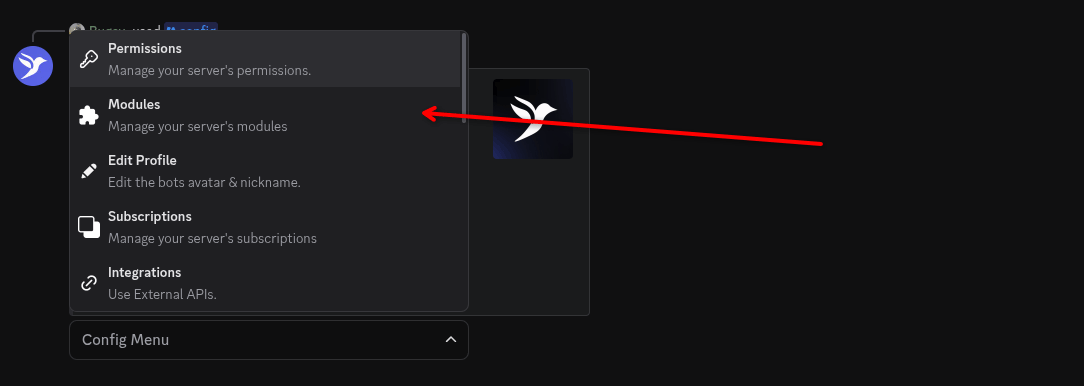 Click on the module select option within in the Config Menu.
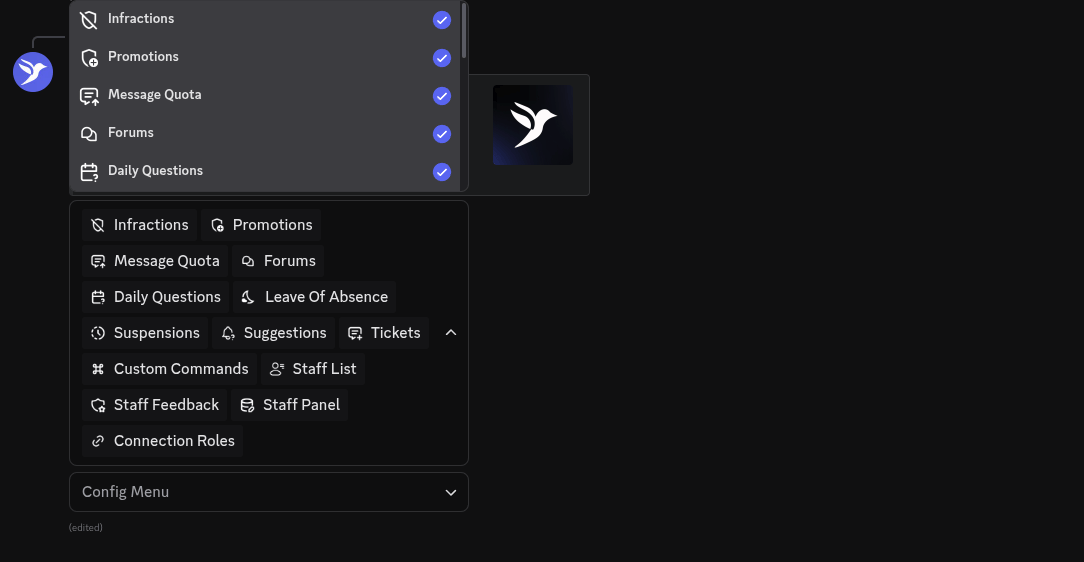 Click on the modules dropdown option, for the modules you want to select them.
 Now click anywhere else but the dropdown menu, it should prompt a `Modules Saved` popup.
The module is now the module is enabled!
# Step 3 - The End
> You've successfully set up the bot (hopefully), you can now click on other modules and set them up.
>
> Read specific setups for modules in the [documentation](https://docs.astrobirb.dev).
Now click anywhere else but the dropdown menu, it should prompt a `Modules Saved` popup.
The module is now the module is enabled!
# Step 3 - The End
> You've successfully set up the bot (hopefully), you can now click on other modules and set them up.
>
> Read specific setups for modules in the [documentation](https://docs.astrobirb.dev).